The Virtualization Tax on Windows Workstations
Running containerized workloads on Windows has felt like carrying unnecessary ballast. For years, engineers building microservices or infrastructure tools on Windows desktops relied on Docker Desktop or Podman running on top of Hyper-V virtual machines. Every reboot required spinning up full VM abstractions, consuming gigabytes of system RAM before a single line of application code even executed.
The performance tax extended far beyond raw memory usage. Under WSL2, cross-boundary file system operations suffered from severe latency whenever Linux processes attempted to read or modify files sitting on native Windows drives. Developers routinely resorted to running VS Code Server instances inside every individual container or offloading entire testing environments to dedicated Linux hardware running containerd, similar to challenges encountered when modernizing legacy infrastructure stacks. According to InfoWorld's preview of WSL container features, over half of Microsoft Azure's cloud servers run Linux distributions, making Linux-native parity an operational requirement for engineering teams. Heavy VM translation layers simply haven't kept pace with modern developer workflows.
Introducing the wslc CLI Engine
At Build 2026, Microsoft introduced native WSL container support, shipping a lightweight executable named wslc.exe directly within the Windows Subsystem for Linux bundle. This CLI provides direct lifecycle control over containerized processes without requiring a separate virtualization engine or heavy desktop utility.
To access the native CLI tools, your workstation must run WSL build 2.9.3 or higher. Because this capability shipped initially in pre-release builds, updating your local system requires executing wsl --update --pre-release from an administrative PowerShell window, as detailed in Microsoft's WSL installation reference. After restarting your active terminal, running wslc displays the native command syntax. The CLI operates in parallel with standard wsl commands, keeping container management tasks cleanly isolated from primary Linux distros.
The CLI syntax matches standard container tooling. Commands like wslc run, wslc container list (or wslc container list --all), wslc stats, and wslc image list feel instantly familiar to engineers accustomed to Docker or Podman interfaces. Running a disposable testing instance requires nothing more than executing wslc run --rm -it ubuntu:latest bash.
Kernel Networking and File System Architecture
The architectural shift under wslc.exe replaces clunky translation wrappers with two crucial lower-level system updates: a high-throughput file system driver and a direct network relay stack.
In earlier setups, sharing volumes between Windows folders and Linux containers triggered heavy I/O overhead. The new file system layer in native WSL container builds dramatically speeds up file access between Windows applications and container environments. Still, file placement matters for maximum throughput. Storing project code directly inside the Linux file system path (\\wsl$) yields the fastest read and write speeds when compiling or running containerized builds.
Networking gets a direct overhaul. Rather than routing traffic through isolated virtual network adapters with brittle port-forwarding rules, the native container engine relays network connections directly through the primary Windows network stack. When you expose an Nginx instance using wslc run -d --rm -p 8080:80 --name web nginx, the port routes directly to localhost:8080 on Windows with full access to local firewall policies and network resources.
Beyond command-line operations, Microsoft published a dedicated NuGet package for C, C#, and C++ developers. This API allows desktop software to programmatically launch, inspect, stop, and clean up Linux containers. Instead of maintaining web-based RPC calls to external servers or installing background daemons, native desktop applications can embed containerized microservices and communicate directly over local gRPC or REST ports.
Hands-On Container Building and Lifecycle Management
Building custom images with wslc.exe follows a straightforward process that integrates directly into standard IDE setups like Visual Studio Code. As outlined in Microsoft's official guide to containers on WSL, developers can connect VS Code to their WSL Linux distribution using the remote extension, open project files stored on the \\wsl$ file system, and construct container images locally.
A standard Containerfile (or Dockerfile) placed in your project root defines the build instructions:
FROM python:3
WORKDIR /app
COPY requirements.txt .
RUN pip install --no-cache-dir -r requirements.txt
COPY . .
EXPOSE 8000
CMD ["python", "manage.py", "runserver", "0.0.0.0:8000"]
Building the image uses the wslc build command:
wslc build -t helloworld-django .
Once built, verify the image presence with wslc image list and launch the container in background mode:
wslc run -d --rm -p 8000:8000 --name django helloworld-django
You can inspect running states or execute remote commands inside the active container using wslc exec django uname or tail live output via wslc container logs django. When troubleshooting unexpected container crashes or checking configuration metadata, wslc container inspect <container-id> and wslc image inspect <image> surface exact state details.
System maintenance remains equally straightforward. Disk space recovery is managed using explicit cleanup commands:
wslc container prune
wslc image prune
These routines clear stopped containers and dangling images without risking corruption of your core WSL Linux distributions.
Desktop Visualizers and Local Kubernetes Options
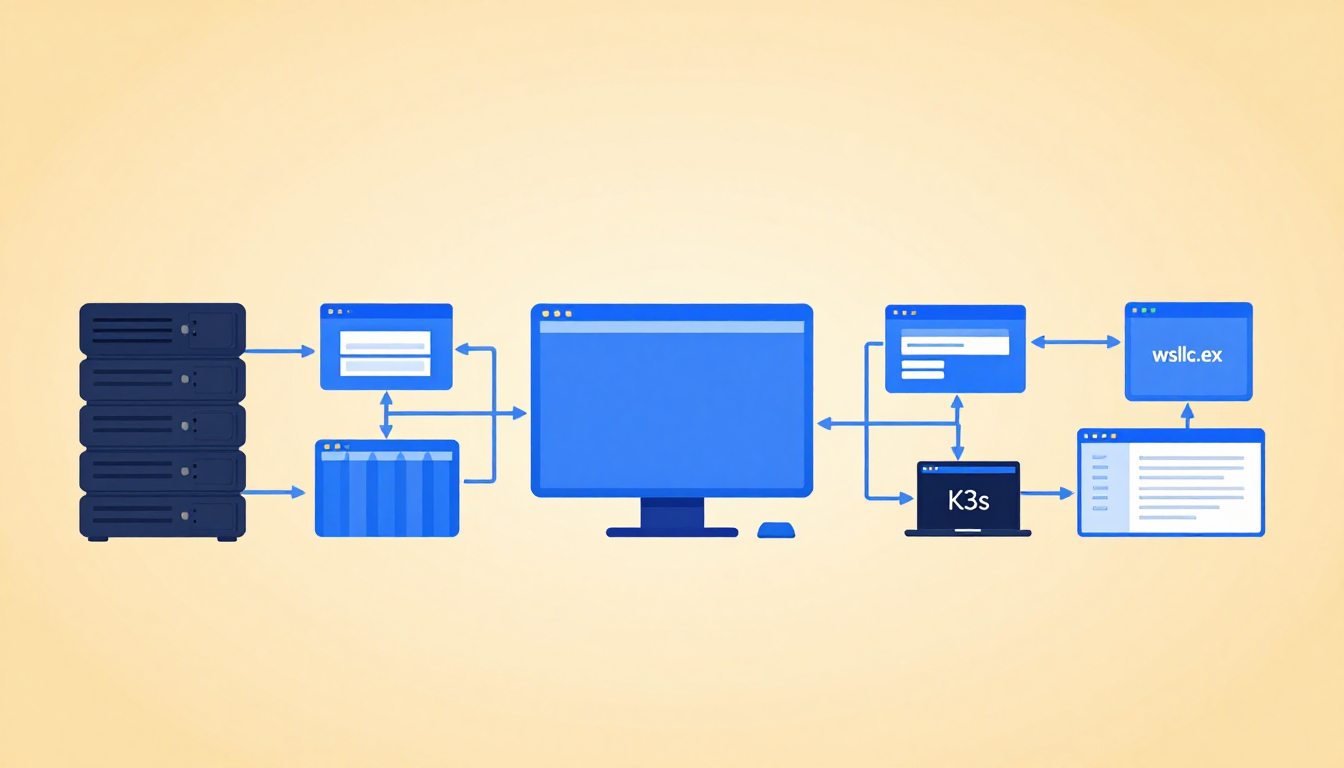
While command-line execution caters to automated scripts and terminal power users, visual management tools have already started emerging around the wslc API. Open-source projects like WSL Container Desktop use C# and WinUI with the Windows App SDK to deliver a clean desktop dashboard. This interface displays active container cards, real-time memory and CPU resource gauges, direct log inspection panes, and quick browser-launch shortcuts for published network ports.
Beyond local controls, WSL Container Desktop integrates with external image repositories like Docker Hub and Azure Container Registry. Developers can pull base images, attach local code, and analyze disk usage with built-in analytics that flag unused images.
For teams building cloud-native microservices or Kubernetes-bound services, the dashboard allows developers to stand up lightweight K3s Kubernetes instances directly within WSL. Featuring a management UI modeled after Headlamp, this approach gives developers a production-aligned local cluster without the massive resource consumption of legacy desktop platforms or complex Kubeflow infrastructure setups.
We've previously explored how building internal developer platform tooling reduces cognitive overhead across cloud infrastructure teams. By removing virtual machine overhead and providing direct CLI and API controls through wslc.exe, Microsoft has turned Windows back into a formidable workstation environment for Linux-focused software engineering.